Computer Networking Solution: Does Restore function restore everything?
All of us know that Windows has RESTORE function. But does it really restore everything. Read below for some info.
To give a simple answer to the question,
Yes, Microsoft system restore sometimes do not "fix" everything.
OK, now a little more detail...
It is designed to only make "restore points" at certain specific times "it thinks" are important AND it then it only protects a VERY limited sub-set of MS stuff that MS uses inside the OS...
Note that making or storing an "MS Restore Point" can be done manually at any time, up to the limitations of "allowed space" it was assigned (or set to...) At that point, it starts to
"get rid of" older restore points.
It is NOT (and was not designed to be) an Image Program that would take a snapshot of the entire computer "as of" a certain point in time and restore the entire HD contents to the condition at that time.
Someone else will likely give good links to WEB sites that can explain this in much greater detail, but for now, if you are "sure" you used a MS Restore Point before the problem first
"happened", I believe you need to "fix" the original problem instead. As John has said, someone on the list will be happy to help with that if we can.
Restore does not always fix a problem. Even worse, sometimes you fix a problem only to have it re-develop from a restore file. A lot of anti-virus and anti-malware programs ask you to disable system restore during the fix process so that you will not become re-infected...
Computer Networking Solution
Showing posts with label Computer Networking Solution. Show all posts
Showing posts with label Computer Networking Solution. Show all posts
Wednesday, September 10, 2008


Thursday, July 31, 2008
New Phishing Technique..Beware!!! (Computer Networking Solution)
Computer Networking Solution: New phishing technique.... Beware!!!
We all know or at least heard about phishing. The tipical example for phishing is you received email from your bank saying they are updating customer database and want you to logon to your bank account and update your record. In the email there is a link for you to click that look like from your bank. When you click to the given link, it will not direct you to your bank website but you will redirect you to fake website that look similar to your bank website. When you logon to the fake website, it will collect your user ID and password than they will use it to the actual bank website...you know what happen next.
This is information from trendmicro.
Now there's new phishing technoque, no URL link or redirection within this email like the old phishing mail. So how the new phishing work? You receive email and if the customer reply the mail, then they are “fish” by the phishing mail. So from this new phishing technique, the user awareness is very important to educate user on how to be more aware on nowadays security risk in order for them to avoid being “fish” by the phisher.
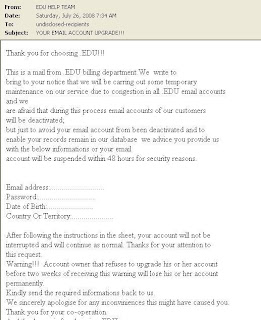
The phisher can hijack the legitimate domain name and this can avoid them to slip through our ERS filter and no URL or redirection to avoid being filter by our WRS. So it is time to promote the TAAS to educate our customer in handling today’s threat and awareness. Below is the sample email that use new phishing technique.
So please beware and always double check with your bank. share this with your friend.
(Computer Networking Solution)
Feed Shark
Computer Networking Solution
phishing
networking problem
computer network security
computer network maintenance
computer network installation
Turbo Tagger
We all know or at least heard about phishing. The tipical example for phishing is you received email from your bank saying they are updating customer database and want you to logon to your bank account and update your record. In the email there is a link for you to click that look like from your bank. When you click to the given link, it will not direct you to your bank website but you will redirect you to fake website that look similar to your bank website. When you logon to the fake website, it will collect your user ID and password than they will use it to the actual bank website...you know what happen next.
This is information from trendmicro.
Now there's new phishing technoque, no URL link or redirection within this email like the old phishing mail. So how the new phishing work? You receive email and if the customer reply the mail, then they are “fish” by the phishing mail. So from this new phishing technique, the user awareness is very important to educate user on how to be more aware on nowadays security risk in order for them to avoid being “fish” by the phisher.
The phisher can hijack the legitimate domain name and this can avoid them to slip through our ERS filter and no URL or redirection to avoid being filter by our WRS. So it is time to promote the TAAS to educate our customer in handling today’s threat and awareness. Below is the sample email that use new phishing technique.

So please beware and always double check with your bank. share this with your friend.
(Computer Networking Solution)
Feed Shark
Computer Networking Solution
phishing
networking problem
computer network security
computer network maintenance
computer network installation
Turbo Tagger
Thursday, July 17, 2008
Why I cannot Print???? (Computer Networking Solution)
Computer Networking Solution
One of common problem that I face in daily job is printer cannot print. By the way I work in IT department and one of my jobs is to settle user computer problem.
So, back to the printer problem. Normally user will call and say “I cannot print…why?”, User also will say, “This morning I can print….why now I cannot print?. User will call direct to IT people when they face problem.
Normally when I received that call, I will ask, is there any error message? They will say “ I don’t see any error message” or “Too long for me to read” or “I don’t understand what it says”. I may ask another question in order to rectify the problem over the phone. Some user don’t like it and simply say “You just come over here and settle my problem”.
So basically, when we face problem with Computer, look at the error message, try to understand it and follow as instructed. If you have no idea what it says, presses the ‘print screen’ button and paste to excel or words. Pass the file to your IT guys. The message is important for IT people to understand about the problem and solving process will become faster.
You can troubleshoot the problem by you self by doing simple check.
1. Check weather the printer was installed in your Computer or not? This may sound strange but for me this is what you should check first.( For WinXP SP2 – Click Start -> Printers and Faxes)
2. At the same place also, check the status of your problem/default printer, is it ‘ready’ or ‘offline’? Is the printer icon blur or not? If ‘ready’, means and the printer icon is not blur, means the printer is OK, you should be able to print. If you cannot print, the problem is not with the printer, look at others. If the printer status is ‘offline’ and the printer icon is blur, than you need to make the printer online.
a. If it is a network printer ( the printer has it own IP Address )- Check weather the printer is on or not. Check also for any error message. From the message start your troubleshooting.
b. If the printer is ‘network’ printer but connected to other computer in your office LAN(Local Area Network), please check if the computer that the printer connected to it is on or not? Try to print from the computer that the printer connected to it. You will not able to print to that printer until the computer that the printer connected to it is able to print.
3. After you try all, but still not working than call your IT guy.
For my case, the message that I receive is 'too many connection'. So I just reset ( on and off ) back the printer and the user is able to print as normal. :)
Computer Networking Solution
Feed Shark
HP Printers
Printer Driver
brother printers
epson printers
fargo printers
canon printers
Turbo Tagger
One of common problem that I face in daily job is printer cannot print. By the way I work in IT department and one of my jobs is to settle user computer problem.
So, back to the printer problem. Normally user will call and say “I cannot print…why?”, User also will say, “This morning I can print….why now I cannot print?. User will call direct to IT people when they face problem.
Normally when I received that call, I will ask, is there any error message? They will say “ I don’t see any error message” or “Too long for me to read” or “I don’t understand what it says”. I may ask another question in order to rectify the problem over the phone. Some user don’t like it and simply say “You just come over here and settle my problem”.
So basically, when we face problem with Computer, look at the error message, try to understand it and follow as instructed. If you have no idea what it says, presses the ‘print screen’ button and paste to excel or words. Pass the file to your IT guys. The message is important for IT people to understand about the problem and solving process will become faster.
You can troubleshoot the problem by you self by doing simple check.
1. Check weather the printer was installed in your Computer or not? This may sound strange but for me this is what you should check first.( For WinXP SP2 – Click Start -> Printers and Faxes)
2. At the same place also, check the status of your problem/default printer, is it ‘ready’ or ‘offline’? Is the printer icon blur or not? If ‘ready’, means and the printer icon is not blur, means the printer is OK, you should be able to print. If you cannot print, the problem is not with the printer, look at others. If the printer status is ‘offline’ and the printer icon is blur, than you need to make the printer online.
a. If it is a network printer ( the printer has it own IP Address )- Check weather the printer is on or not. Check also for any error message. From the message start your troubleshooting.
b. If the printer is ‘network’ printer but connected to other computer in your office LAN(Local Area Network), please check if the computer that the printer connected to it is on or not? Try to print from the computer that the printer connected to it. You will not able to print to that printer until the computer that the printer connected to it is able to print.
3. After you try all, but still not working than call your IT guy.
For my case, the message that I receive is 'too many connection'. So I just reset ( on and off ) back the printer and the user is able to print as normal. :)
Computer Networking Solution
Feed Shark
HP Printers
Printer Driver
brother printers
epson printers
fargo printers
canon printers
Turbo Tagger
Wednesday, June 25, 2008
10 tips on how to help reduce spam: Computer Networking solution
Computer Networking Solution: This article is taken from Microsoft website, and it’s a good article and I want to share with all of you. This is because SPAM is never ending story(at least at this time)
At the moment what we can do is try to reduce it by practicing simple method that is listed below. We also should change our way in handling our email address. Do you know why people like to SPAM, for me because it’s work. Many of us give good responding to SPAM. So it’s time to change and share this info with your family, friends and colleague.
10 tips on how to help reduce spam
Applies to: Microsoft Office Outlook 2007
Follow these guidelines to help lower your risk of receiving junk e-mail.
1. Take advantage of the Junk E-mail Filter in Microsoft Office Outlook 2007 Office Outlook 2007 helps to mitigate the problem of spam by providing the Junk E-mail Filter, which automatically evaluates incoming messages and sends those identified as spam to the Junk E-mail folder.
2. Block pictures in HTML messages that spammers use as Web beacons Office Outlook 2007 has an additional anti-spam feature. By default, this feature blocks automatic picture downloads and other external content in messages if the content is linked to a server. If you open a message that has external content when this feature is turned off, the external content downloads automatically, inadvertently verifying to the server that your e-mail address is a valid one. Your e-mail address can then be sold to a spammer. You can unblock external content for messages that come from sources that you trust. For details, see Block or unblock automatic picture downloads in e-mail messages.
3. Turn off read and delivery receipts and automatic processing of meeting requests Spammers sometimes resort to sending meeting requests and messages that include requests for read and delivery receipts. Responding to such meeting requests and read receipts might help spammers to verify your e-mail address. You can turn off this functionality. However, read and delivery receipts and automatic processing of meeting requests are useful features that you should not be afraid to use within a secure corporate network.
Note Delivery receipts can be turned off only by your e-mail server administrator.
Turn off read receipts
1. On the Tools menu, click Options.
2. Click E-mail Options.
3. Click Tracking Options.
4. Under Use this option to decide how to respond to requests for read receipts. Only applies to Internet Mail accounts, click Never send a response.
Turn off automatically acceptance of meeting requests
5. In Outlook, on the Tools menu, click Options, and then click Calendar Options.
6. Under Advanced options, click Resource Scheduling.
7. Clear the Automatically accept meeting requests and process cancellations check box.
4. Limit the places where you post your e-mail address Be cautious about posting your e-mail address on public Web sites, such as newsgroups, chat rooms, bulletin boards, and so forth. When visiting public sites, you might want to use an e-mail address that is different from your main e-mail address. Remove your e-mail address from your personal Web site. Whenever you list or link to your e-mail address, you increase your chances of being spammed.
5. Review the privacy policies of Web sites When you sign up for online banking, shopping, or newsletters, review the privacy policy of the site carefully before you reveal your e-mail address or other personal information. Look for a link or section (usually at the bottom of the Web site's home page) called "Privacy Statement," "Privacy Policy," "Terms and Conditions," or "Terms of Use." If the Web site does not explain how your personal information will be used, consider not using the services at that site.
6. Watch out for check boxes that are already selected When you shop online, companies sometimes add a check box that is already selected, which indicates that it is fine with you if the company sells or gives your e-mail address to other businesses (or "third parties"). Clear this check box so that your e-mail address is not shared.
7. Don't reply to spam Never reply to an e-mail message — not even to unsubscribe from a mailing list — unless you know and trust the sender, such as when the e-mail message comes from a service, an online store, or newsletter that you have signed up with. Answering spam just confirms to the spammer that your e-mail address is an active one.
8. If a company uses e-mail messages to ask for personal information, don't respond by sending a message Most legitimate companies will not ask for personal information to be sent in e-mail. Be suspicious if they do. Such a request could be a spoofed e-mail message disguised to look like a legitimate one. This tactic is known as phishing. If the possible spam appears to be sent by a company that you do business with — for example, your credit card company — then call the company to verify that they sent it, but don't use any phone number that is provided in the e-mail. Instead, use a number that you find by using other means, such as directory assistance, a statement, or a bill. If the request is a legitimate one, the company's customer service representative should be able to assist you. The Junk E-mail Filter also includes phishing protection to help identify and disable suspicious messages.
9. Don't contribute to a charity in response to a request sent in e-mail Unfortunately, some spammers prey on your goodwill. If you receive an e-mail appeal from a charity, treat it as spam. If the charity is one that you want to support, locate their telephone number or Web site to find out how you can make a contribution.
10. Don't forward chain e-mail messages Besides increasing overall e-mail volume, by forwarding a chain e-mail message you might be furthering a hoax — and meanwhile, you lose control over who sees your e-mail address.
Eventhough this article meant for Microsoft Office Outlook 2007, but some of it we can practice it even we use others email software. This guide is not difficult to practice, so let us start practicing it, and don’t forget to share with your family, friends and colleagues. ( Computer Networking Solution )
Feed Shark
At the moment what we can do is try to reduce it by practicing simple method that is listed below. We also should change our way in handling our email address. Do you know why people like to SPAM, for me because it’s work. Many of us give good responding to SPAM. So it’s time to change and share this info with your family, friends and colleague.
10 tips on how to help reduce spam
Applies to: Microsoft Office Outlook 2007
Follow these guidelines to help lower your risk of receiving junk e-mail.
1. Take advantage of the Junk E-mail Filter in Microsoft Office Outlook 2007 Office Outlook 2007 helps to mitigate the problem of spam by providing the Junk E-mail Filter, which automatically evaluates incoming messages and sends those identified as spam to the Junk E-mail folder.
2. Block pictures in HTML messages that spammers use as Web beacons Office Outlook 2007 has an additional anti-spam feature. By default, this feature blocks automatic picture downloads and other external content in messages if the content is linked to a server. If you open a message that has external content when this feature is turned off, the external content downloads automatically, inadvertently verifying to the server that your e-mail address is a valid one. Your e-mail address can then be sold to a spammer. You can unblock external content for messages that come from sources that you trust. For details, see Block or unblock automatic picture downloads in e-mail messages.
3. Turn off read and delivery receipts and automatic processing of meeting requests Spammers sometimes resort to sending meeting requests and messages that include requests for read and delivery receipts. Responding to such meeting requests and read receipts might help spammers to verify your e-mail address. You can turn off this functionality. However, read and delivery receipts and automatic processing of meeting requests are useful features that you should not be afraid to use within a secure corporate network.
Note Delivery receipts can be turned off only by your e-mail server administrator.
Turn off read receipts
1. On the Tools menu, click Options.
2. Click E-mail Options.
3. Click Tracking Options.
4. Under Use this option to decide how to respond to requests for read receipts. Only applies to Internet Mail accounts, click Never send a response.
Turn off automatically acceptance of meeting requests
5. In Outlook, on the Tools menu, click Options, and then click Calendar Options.
6. Under Advanced options, click Resource Scheduling.
7. Clear the Automatically accept meeting requests and process cancellations check box.
4. Limit the places where you post your e-mail address Be cautious about posting your e-mail address on public Web sites, such as newsgroups, chat rooms, bulletin boards, and so forth. When visiting public sites, you might want to use an e-mail address that is different from your main e-mail address. Remove your e-mail address from your personal Web site. Whenever you list or link to your e-mail address, you increase your chances of being spammed.
5. Review the privacy policies of Web sites When you sign up for online banking, shopping, or newsletters, review the privacy policy of the site carefully before you reveal your e-mail address or other personal information. Look for a link or section (usually at the bottom of the Web site's home page) called "Privacy Statement," "Privacy Policy," "Terms and Conditions," or "Terms of Use." If the Web site does not explain how your personal information will be used, consider not using the services at that site.
6. Watch out for check boxes that are already selected When you shop online, companies sometimes add a check box that is already selected, which indicates that it is fine with you if the company sells or gives your e-mail address to other businesses (or "third parties"). Clear this check box so that your e-mail address is not shared.
7. Don't reply to spam Never reply to an e-mail message — not even to unsubscribe from a mailing list — unless you know and trust the sender, such as when the e-mail message comes from a service, an online store, or newsletter that you have signed up with. Answering spam just confirms to the spammer that your e-mail address is an active one.
8. If a company uses e-mail messages to ask for personal information, don't respond by sending a message Most legitimate companies will not ask for personal information to be sent in e-mail. Be suspicious if they do. Such a request could be a spoofed e-mail message disguised to look like a legitimate one. This tactic is known as phishing. If the possible spam appears to be sent by a company that you do business with — for example, your credit card company — then call the company to verify that they sent it, but don't use any phone number that is provided in the e-mail. Instead, use a number that you find by using other means, such as directory assistance, a statement, or a bill. If the request is a legitimate one, the company's customer service representative should be able to assist you. The Junk E-mail Filter also includes phishing protection to help identify and disable suspicious messages.
9. Don't contribute to a charity in response to a request sent in e-mail Unfortunately, some spammers prey on your goodwill. If you receive an e-mail appeal from a charity, treat it as spam. If the charity is one that you want to support, locate their telephone number or Web site to find out how you can make a contribution.
10. Don't forward chain e-mail messages Besides increasing overall e-mail volume, by forwarding a chain e-mail message you might be furthering a hoax — and meanwhile, you lose control over who sees your e-mail address.
Eventhough this article meant for Microsoft Office Outlook 2007, but some of it we can practice it even we use others email software. This guide is not difficult to practice, so let us start practicing it, and don’t forget to share with your family, friends and colleagues. ( Computer Networking Solution )
Feed Shark
Wednesday, October 24, 2007
More on Computer Networking Solution
You may not know much about networking, what it can do? what is the benefit to have it?, how to do it?, when you need it? where to start and who to contact? No worries any more because here I give you a collection of good articles on Computer Networking Solution. I will also write an article about Computer Networking Solution. Enjoy article on Computer Networking Solution.
Computer Networking Solution is a process of sharing data and shared resources between two or more connected computers. The shared resources can include printer, Fax modem, Hard disk, CD - DVD Rom, Database and the data files. A Computer Network Solution can be divided into a small or local area network, a networking between computers in a building of a office (LAN), medium sized network (MAN), a network between two offices in a city and Wide network (WAN) a network between the computers, one is locally and the other can be thousands of miles away in any other country of the world.
WAN connectivity is achieved by a network device known as “Router”. The internet is the world’s largest WAN network, where millions of computers from all over the globe and connected with each other.
Networking is the practice of linking two or more computers or devices with each other. The connectivity can be wired or wireless. A computer network can be categorized in different ways, depends on the geographical area as mentioned above.
There are two main types of the computer network client-server and peer to peer. In the client server computing, a computer plays a major role known as server, where the files, data in the form of web pages, docs or spread sheet files, video, database & resources are placed.
All the other computers in the client/server network are called clients and they get the data from the server. In the peer to peer network all the computers play the same role and no computer act as a centralized server. In the major businesses around the world client-server network model is in major use.
A network topology defines the structure, design or layout of a network. There are different topologies like bus, ring, star, mesh, hybrid etc. The star topology is most commonly used network topology. In the star topology, all the computers in the network are connected with a centralized device such as hub or switch. Thus forms a star like structure. If the hubs/switch fails to work for any reason then all the connectivity and communication between the computers of a network will be halted.
In the Computer Networking Solution, a common communication language is used by the computers and the network devices and this language is known as protocols. The most commonly used and popular protocols on the internet and in the home and other networks is called TCP/IP. TCP/IP is not a singleprotocol but it is a suite of several protocols.
A network can be a wired or wireless and TCP/IP protocol can work both in types of network.
A data flow in a computer network can be divided into seven logical layers called OSI layersmodel that was developed by Intel and Xerox Corporation and was standardized by ISO.
1. Application layer
2. Presentation layer
3. Session layer
4. Transport layer
5. Network layer
6. Data Link layer
a. Media access control sub-layer
b. Logical link control sub-layer
7. Physical layer.
A network can be divided into different scales and ranges and it depends on the requirement of the network and the geographical location. Computer Networking Solution can be divided into Local Area Network, Personal Area Network, Campus Area Network, Wireless Local Area Network,Metropolitan Area Network and Wide Area Network.
There are several Computer Networking Solution connection methods like HomePNA, Power line communication, Ethernet and Wifi connection method.A network can also be categorized into several different types based on the services it provides like Server farms, Storage area networks, Value control networks, Value-Added networks,SOHO network, Wireless network and Jungle networks.
B. Bashir manages this website Networking Tutorials and regularly writes articles on various topics such as Computer Networking Network Troubleshooting Tips Wireless Networking, Computer Hardware, Certifications, How Tos, Network Security Guide and computer tips.
Article Source: http://EzineArticles.com/?expert=Bushra_Bashir
So I hope your worries is lesser about Computer Networking Solution. My Skype contact : thalib21
Thursday, October 11, 2007
Computer Networking Solution for Family
You may not know much about networking, what it can do? what is the benefit to have it?, how to do it?, when you need it? where to start and who to contact? No worries any more because here I give you a collection of good articles on Computer Networking Solution. I will also write an article about Computer Networking Solution. Enjoy article on Computer Networking Solution.
Nowadays, most family have computer in their house, and most of family has more than 1 desktop or notebook. This is because more and more people connect to internet and another reason is the computer price and it's accessories is become cheaper and cheaper. Due to this many family want to do networking in their house or looking for Computer Networking Solution in their house.
If your family has more than one computer, you should consider setting up a home networking system. Home networking is especially desirable if you have two or more family members who frequently use computers. Computer Networking Solution allows you to connect all your computers to each other. You can share files, software, or hardware, through home networking.
On a home network, every computer is networked to a main computer. Usually a desktop computer performs the task of being the main unit for a home network. Then, each computer within the network can access files, software, and hardware of the main unit.
A home network system can be created by using ethernet cables. However, a wireless connection is more desirable and much more user-friendly. Generally how this works is the main computer houses a modem router. Each additional computer then, requires a network card, which is used to communicate with the main computer.
If you are using a PC with a Windows operating system, you can easily set up your home networking by using the networking wizard option on your computer. Windows provides a simple step-by-step setup system that will help you connect your computers in very little time.
Once your computers are all connected to your home network, you will be able to open and share files, play games, and use programs from any computer. The wonderful thing about home Computer Networking Solution is that every computer will be able to access certain peripherals, like the printer, from any location. This is a great thing if you need to print from more than one computer.
If you use home Computer Networking Solution to connect to the Internet, too, don't forget to install a firewall to protect your computer systems. Make sure that all your important files like credit card information and bank accounts are protected from prying eyes onlineby: H Wilbanks
So I hope your worries is lesser about Computer Networking Solution. My Skype contact : thalib21. Lastly to setup Computer Networking Solution for your house in easy. We will talk about this and tips in next post.
Subscribe to:
Posts (Atom)
